
 Sync Compartments Data Across Multiple Computers
Follow these steps carefully, beginning with the computer that already has the correct Compartments data on it. As with any syncing procedure, we recommend you backup your data before syncing. Syncing requires a free DropBox account.

 Step 1
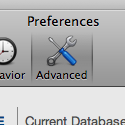
Select the advanced tab in Compartments preferences. To get to the preferences screen, select the app's menu and then select Preferences. In the Preferences window Select the tab labeled Advanced or Database.
 Step 2
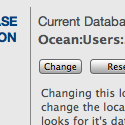
Near the top of the advanced tab, it there will be two buttons: Change and Reset to Default. When you press the Change button, a standard file open dialog box will appear.
 Step 3
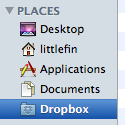
In the standard file dialog box that appears, select Dropbox folder.
 Step 4
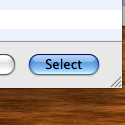
Once you have selected the Dropbox, press the Select button in the bottom left of the screen.
 Step 5
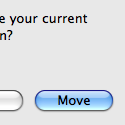
The program will ask you if you want to move your current data to the new location. Assuming you are currently using the computer with your Compartments data, press the Move button. A confirmation screen should appear, telling you that the data was moved successfully.
Step 6
Now proceed to the other computer(s) with which you would like to access the same Compartments data. Repeat steps 1-4 on the other computer(s). When you get to step 4, select the DROPBOX folder again. Do NOT select the Compartments folder--be sure to select the Dropbox folder again!
 Step 7
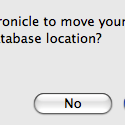
This time, when the program asks you if you want to move your data to the new location, select No. Compartments will look for the already existing data in the Dropbox. You will receive a confirmation that your data was not moved, and your data will then automatically load. You can repeat steps 6-7 for any other computers that you want to sync.
Note: To avoid the possibility of file corruption or other problems, it is best not to change Compartments data on two different computers at the same time. Since you can't be in two places at once, this generally will not be a problem.